Reinstate a Suspended Google Business Profile
How to Reinstate a Suspended Google Business Profile
Having your Google Business Profile (GBP) suspended can disrupt your business’s local SEO services and impact your online visibility. For businesses relying on SEO marketing and digital marketing strategies, a suspended profile can affect rankings, customer engagement, and sales. Fortunately, the reinstatement process is straightforward if you follow the necessary steps and provide the required documentation.
This guide will walk you through the process of reinstating a suspended Google Business Profile, helping you get your profile back online and restore your local SEO in digital marketing efforts.
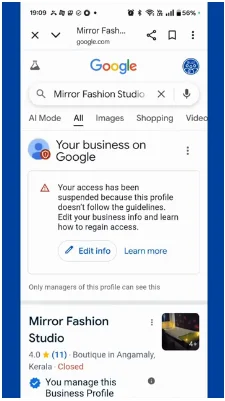
Step 1: Fix the Issues That Led to Suspension
Once you’ve identified the reason for the suspension, the next step is to fix the issues before submitting an appeal. Here’s how to correct the common problems that can cause suspension:
1. Ensure NAP Consistency
- Make sure that your business name, address, and phone number are the same across your Google Business Profile, website, and other online directories.
Double-check that the information is consistent with what’s listed on your website and any third-party listings.
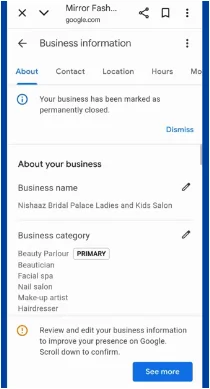
2. Review Google’s Guidelines
- Ensure that your business complies with Google’s Business Profile guidelines. Make sure the business category is correct, and that you’re not violating any Google policies related to prohibited businesses.
3. Merge Duplicate Listings
- If there are duplicate profiles, consolidate them into one Google Business Profile to avoid confusion. Make sure that there is only one active listing for each business location.
4. Correct Your Address
- If you’re using a virtual address or PO box, update your profile to reflect a physical address. Google needs to verify that you have a legitimate, physical business location.
5. Remove Spammy Content
- If your business profile is flagged for suspicious activity, delete any misleading reviews or content that violates Google’s guidelines. Google will not reinstate a profile until the issue is resolved.
Step 2: Gather Required Documentation
To prove that your business is legitimate and complies with Google’s guidelines, you will need to provide supporting documents when submitting the reinstatement request. Here’s what to prepare:
Required Documents:
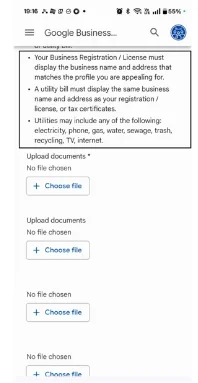
- Business License: A copy of your official business license that shows your business is legally registered.
- Utility Bills: A recent utility bill (e.g., electricity, water, internet) showing the business name and physical address.
- Lease Agreement: If applicable, a copy of the lease agreement for your physical business location.
- Storefront Photos: Photos that show your storefront signage with your business name and phone number clearly visible.
Website Proof: A screenshot or link to your business website showing your business name, address, and phone number clearly.
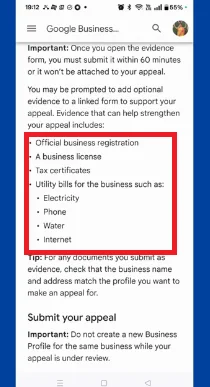
Why This Documentation Is Important:
These documents validate that your business exists, operates from a legitimate physical location, and complies with Google’s local SEO in digital marketing guidelines. Providing accurate documentation helps speed up the reinstatement process.
Photo of storefront showing business name and phone number clearly visible on the signage.
Step 3: Submit the Reinstatement Request
Once you have addressed the issues and gathered the necessary documents, it’s time to submit your reinstatement request. Here’s how to do it:
1. Go to the Reinstatement Form:
Navigate to the Google Business Profile reinstatement form.
2. Sign In:
Sign in with the Google account associated with your suspended profile.
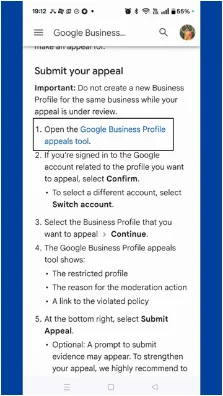
3. Choose Your Business:
Select the suspended business profile you wish to reinstate.
4. Provide Explanation:
Provide a detailed explanation of why your business complies with Google’s guidelines and what corrective actions you’ve taken.
5. Upload Documents:
Attach the required documents like your business license, utility bills, lease agreement, storefront photos, and website proof.
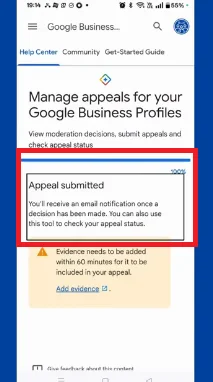
Step 4: Wait for Google’s Review
After submitting your reinstatement request, Google will review your appeal. This process typically takes 3-5 business days but can take up to 1-2 months in some cases, depending on the complexity of the situation.
Why the Delay?
Google may take longer to review your profile for several reasons:
- Volume of Suspended Profiles: Google receives many reinstatement requests, which can delay the process.
- Additional Verification Needed: Google may need to verify the details provided in your appeal or request further clarification.
Step 4 : How to Check Appeal Status
- Sign in to the Google account that manages your business profile.
- Visit the Google Business Profile appeals tool and open the profile you appealed. (support.google.com)
On the right side of the screen, you’ll see a status such as Submitted, Approved, Not Approved, Eligible for appeal, or Can’t be appealed.
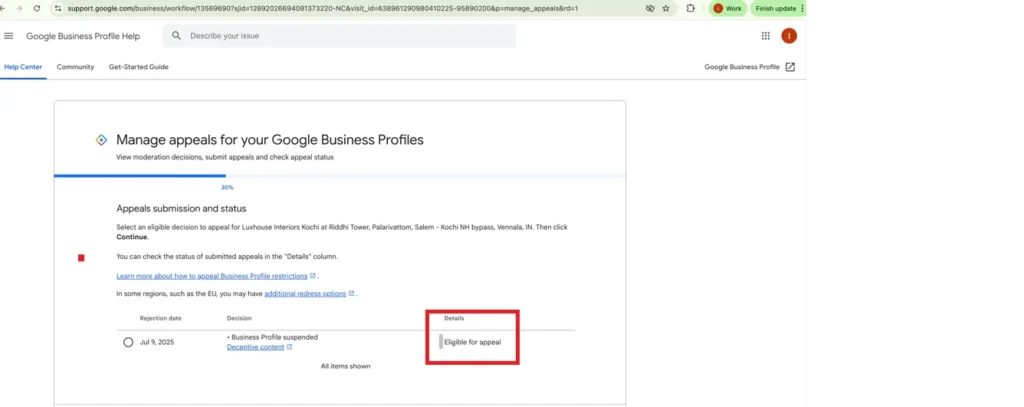
4. Wait for Google to email you the final decision; don’t submit another appeal for the same issue until that decision comes through. (support.google.com)
Step 6: If Denied, Request a Re-Review
If your reinstatement request is denied, you can submit another appeal. Here’s what you need to do:
- Review Feedback:
Read the feedback provided by Google to understand why your reinstatement was denied. - Make Corrections:
Address the issues identified in the denial notice. Ensure your business information is accurate and consistent across all platforms, including your website.
Submit the Appeal Again:
Once you’ve corrected the issues, resubmit your appeal with any additional documentation or clarifications.
Step 7: Seek Help from Google Product Experts
If you’re still facing difficulties, Google Product Experts can provide guidance. These experts can offer advice on how to proceed or escalate your case for further review.
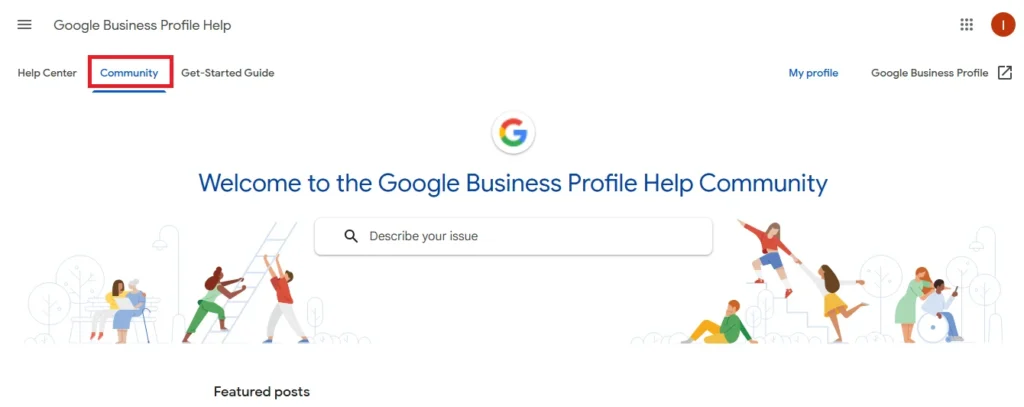
- Visit the Google Business Profile Help Community.
- Post your issue and engage with experts for advice.
Final Tips to Prevent Future Suspensions
Once your profile is reinstated, keep these best practices in mind to prevent future suspensions:
- Consistency Across Platforms: Ensure that your business name, address, and phone number are consistent across your website, Google Business Profile, and other online directories.
- Adhere to Google’s Guidelines: Regularly review Google’s guidelines to ensure that your business remains compliant.
- Keep Your Profile Updated: Regularly update your Google Business Profile with accurate business information and engage with customers through posts and reviews.
Reinstating your Google Business Profile is a crucial step in restoring your business’s local SEO visibility and maintaining a healthy SEO marketing strategy. By following the steps outlined above and ensuring your business complies with Google’s guidelines, you can reinstate your profile and continue to benefit from local SEO efforts.